
The Data Lake
The Data Lake is your central repository for creating, managing, and editing all your datasets. To begin, select an existing database from the dropdown or create a new one.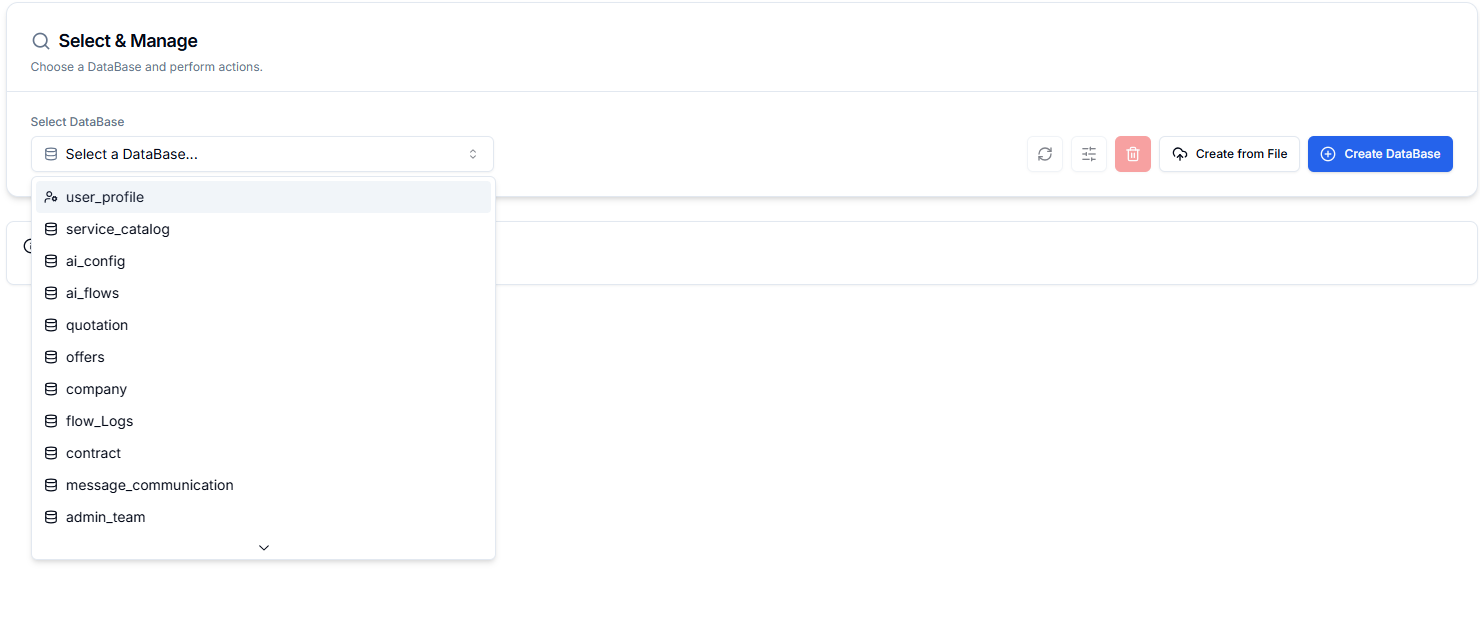
Creating a Database
You can add a database by creating one from scratch or by importing a CSV file.- Create from Scratch
- Import from CSV
1
Start Creation
Click the “Create DataBase” button.
2
Define and Create
In the modal, give your database a unique Name, define its initial Columns, and click “Create”.
Editing a Database
Once a database is selected, you can edit its content (rows) and structure (columns).Managing Rows
| To… | Do this… |
|---|---|
| Add a Row | Click the “Add New Row” button at the bottom of the table. |
| Edit a Row | Click on the row to edit its content. |
| Delete a Row | Hover over the row and click the trash can icon on the right. |
Managing Columns
To add, rename, or delete columns:- Click the “Manage Columns” button.
- In the modal that appears, you can:
- Rename a column by editing its name.
- Delete a column using the trash can icon.
- Add a new column via “Add Another Column”.
- Click “Apply Changes” to save.
Exporting to CSV
Select your database and click the “Download CSV” button at the bottom of the table to download a full copy.Deleting a Database
Select your database and click the red trash can icon next to the “Manage Columns” button. You will be asked to confirm this action.Warning: Deleting a database is a permanent action and cannot be undone.